New Bridge System
Bridge · ESP32
Your Sonoff / eWeLink devices in Apple Home.
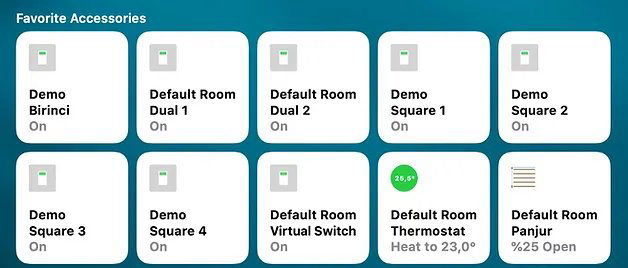
Sonoff switches work with the eWeLink app – but not with Apple Home. The HomeHome.App Bridge fixes that: our free firmware on a small ESP32 board talks to your eWeLink account and shows your devices in the Home app.
What you get
- Control your eWeLink devices with the Home app and Siri.
- Put each device in any room.
- Use them in scenes and automations.
- eWeLink keeps working too – for example to see electricity use.
- Pair with Apple Home once. Add or remove devices later without pairing again.
No hardware is shipped. You buy the board in your own country, install our free firmware from Chrome or Edge, and switch it on with Maker Credits. New to this? Read the getting started guide →
Compatible devices
Which devices work?
Most eWeLink switches, dimmers, thermostats and panels. These are the popular ones, with the Maker Credits each one uses.
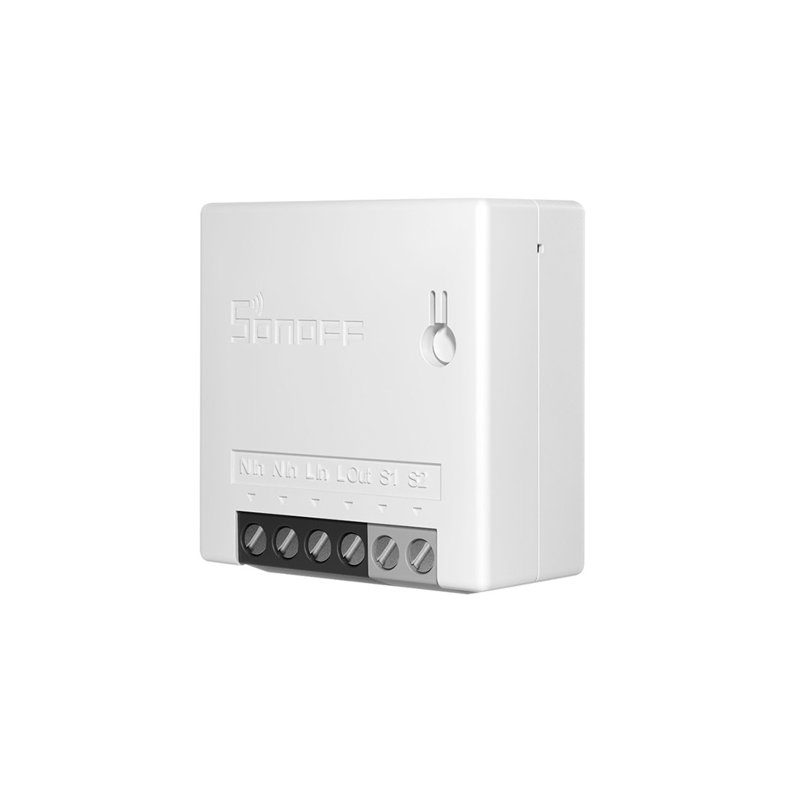 Mini R21x switch · 1 credit
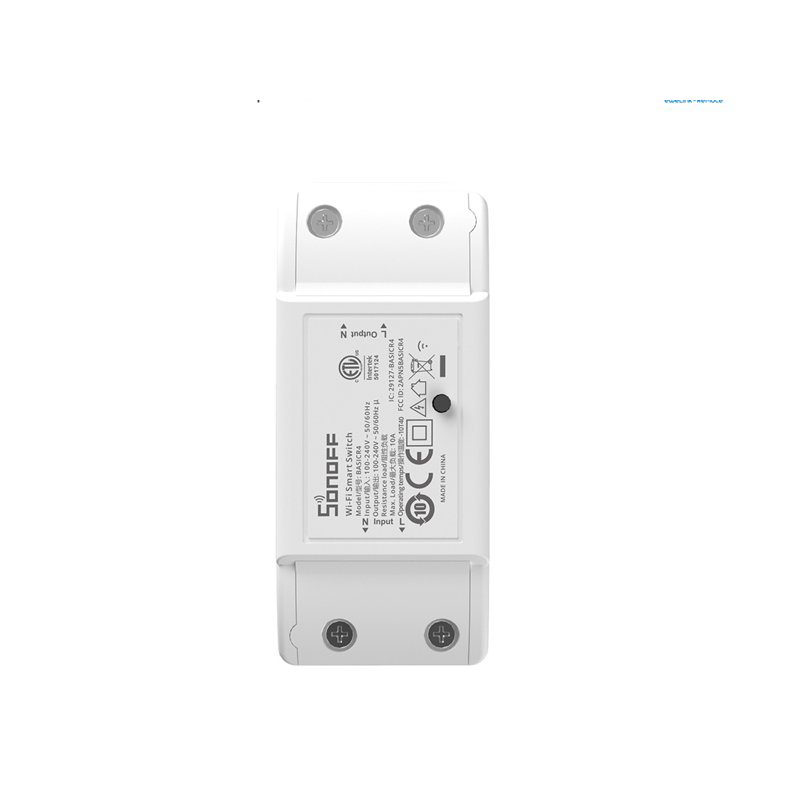 Basic1x switch · 1 credit
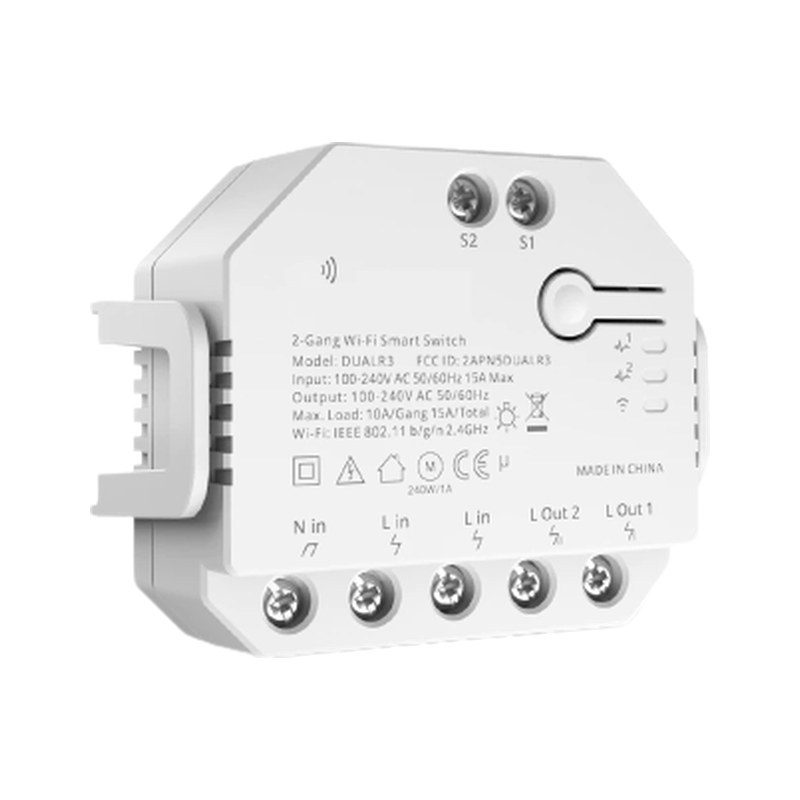 Dual R32x switch · 2 credits, or motor · 4
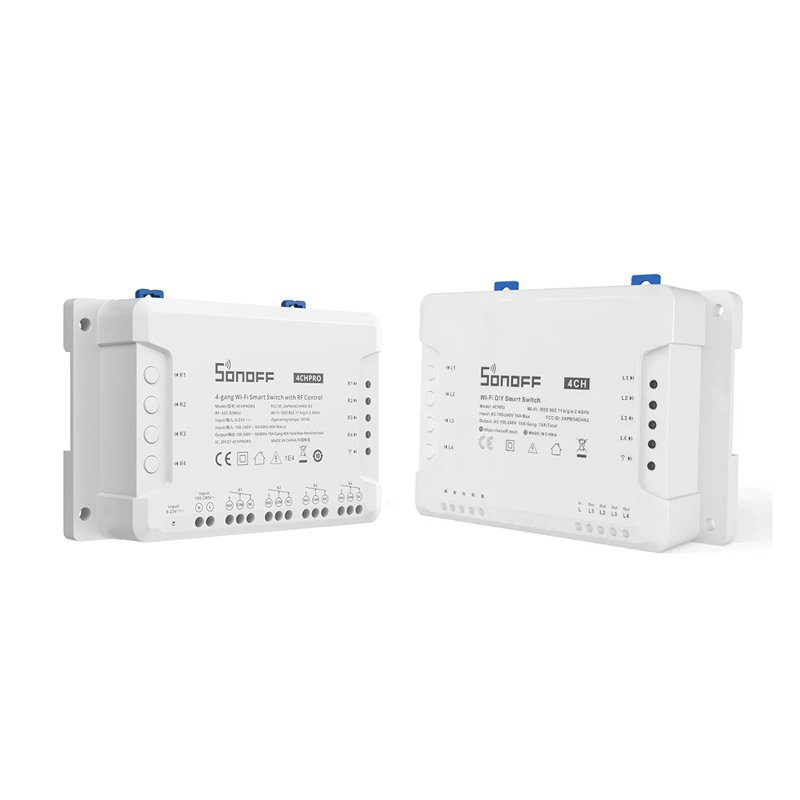 4CH / 4CH Pro4x switch · 4 credits
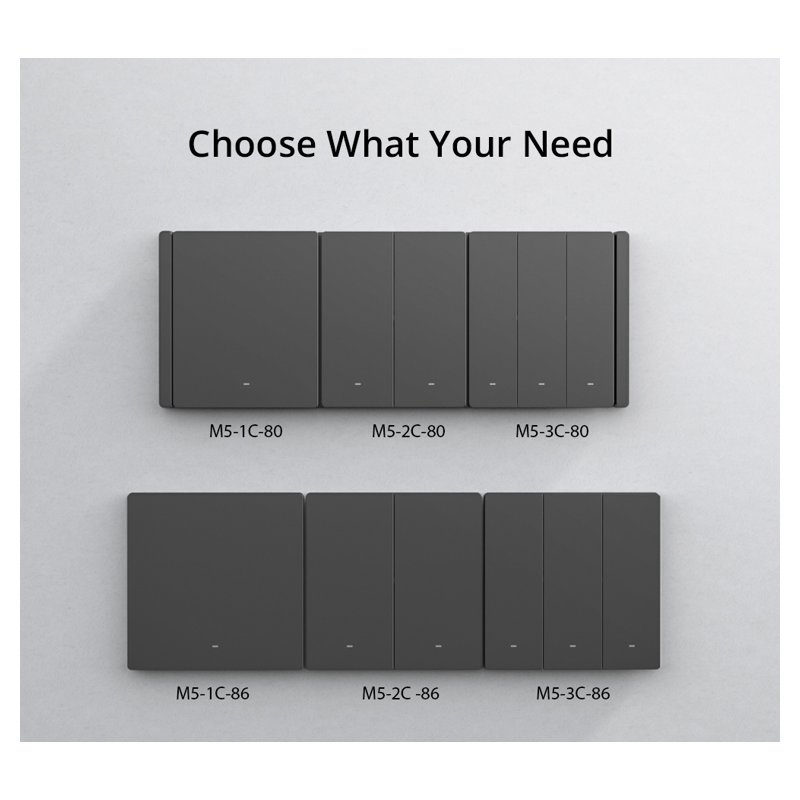 M5 SwitchMan1–3x switch · 1–3 credits
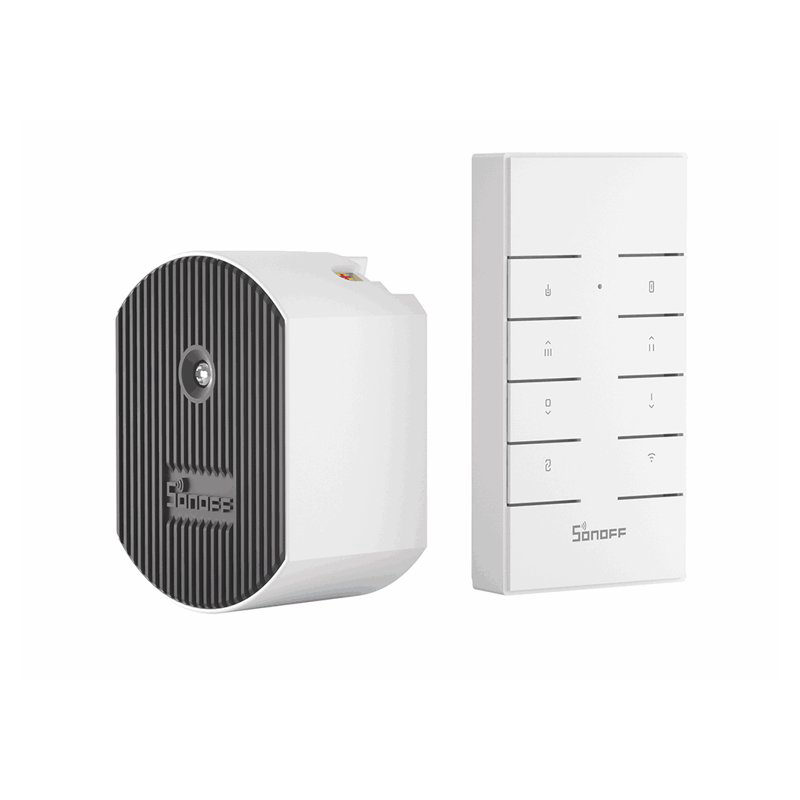 Dimmer D1Dimmer · 2 credits
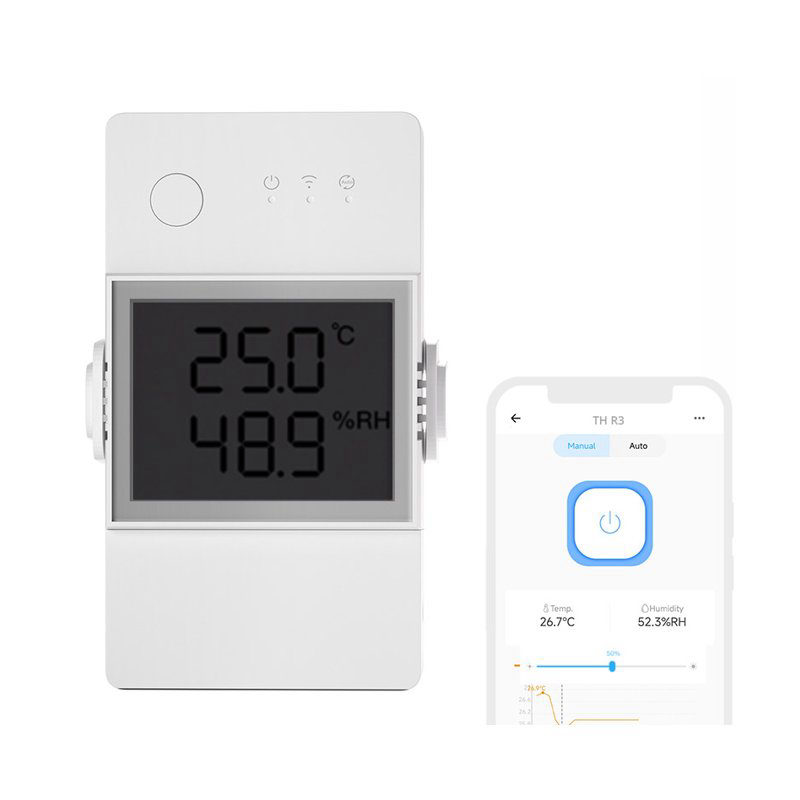 TH Origin / EliteThermostat · 4 credits
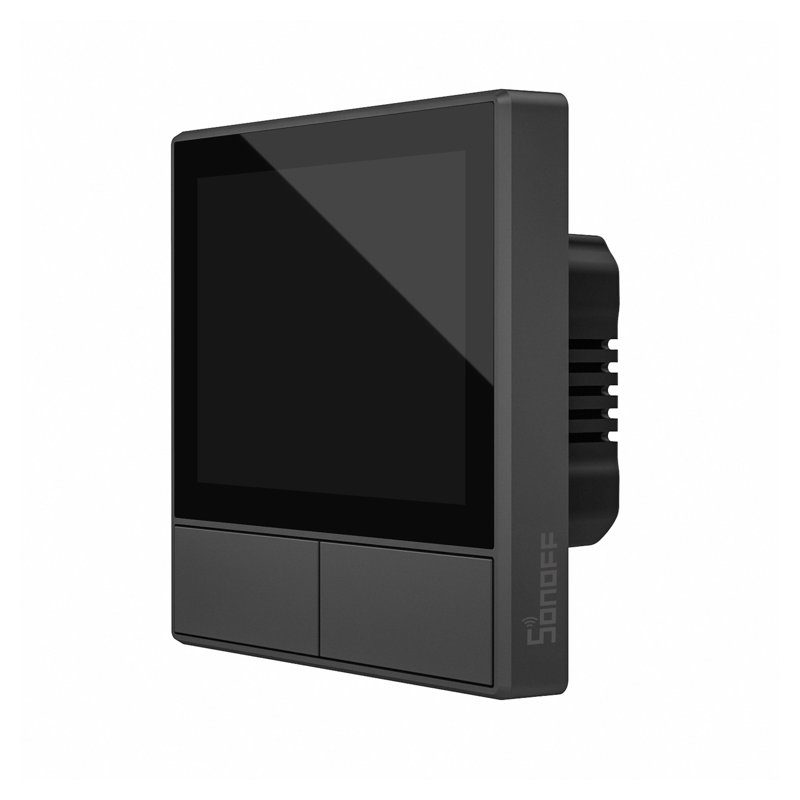 NSPanelPanel · 6 credits
Not supported
Zigbee devices, cameras, LED strips and fans.
Your device is not listed?
Ask us on WhatsApp – we add new models on request.
Maker Credits
How many credits?
The Bridge itself uses no credits. Each device you connect to it does – add them up.
The minimum is 10 credits (USD 5.00 a month). Example: two 2x switches (4) + one thermostat (4) + one NSPanel (6) = 14 credits = USD 7.00 a month.
| Connected device | Credits |
|---|---|
| 1x switch | 1 |
| 2x switch | 2 |
| 3x switch | 3 |
| 4x switch | 4 |
| Dimmer (Sonoff D1) | 2 |
| Motor control (curtain / shutter) | 4 |
| Thermostat | 4 |
| NSPanel | 6 |
Hardware
What you need
One of these three ESP32 boards. All three use the same firmware.
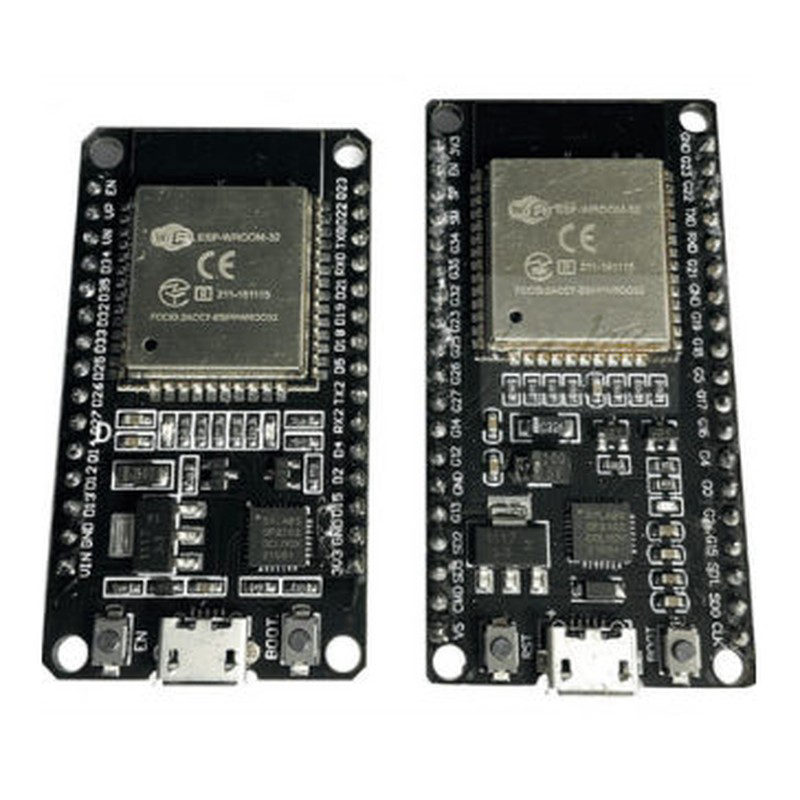 ESP32 DOIT DevKitThe most common one. 30 or 36 pins, micro USB.
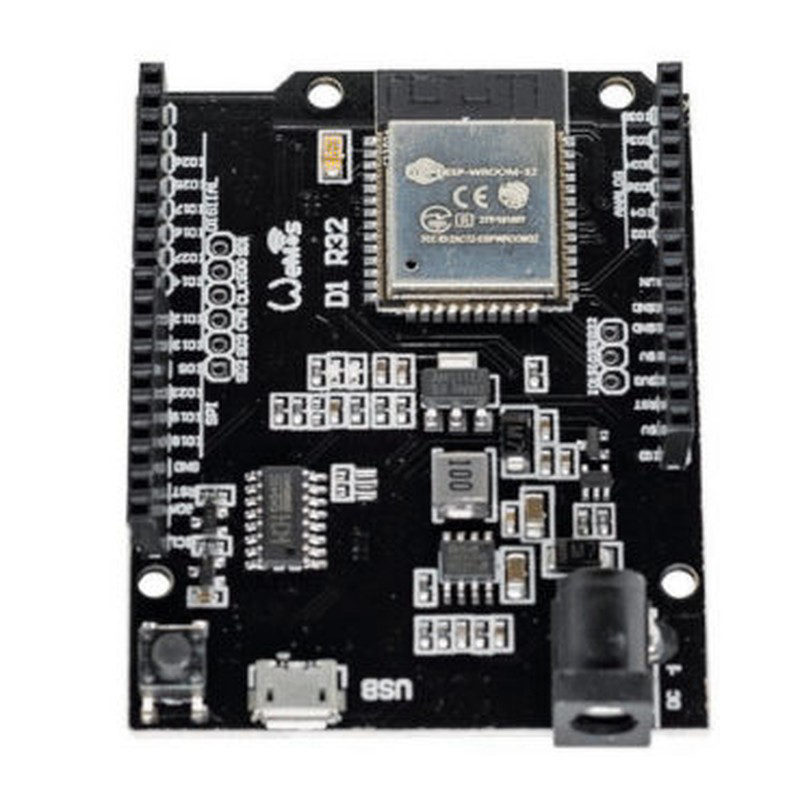 Wemos D1 R32Arduino UNO size. Power over micro USB or a 12 V DC jack.
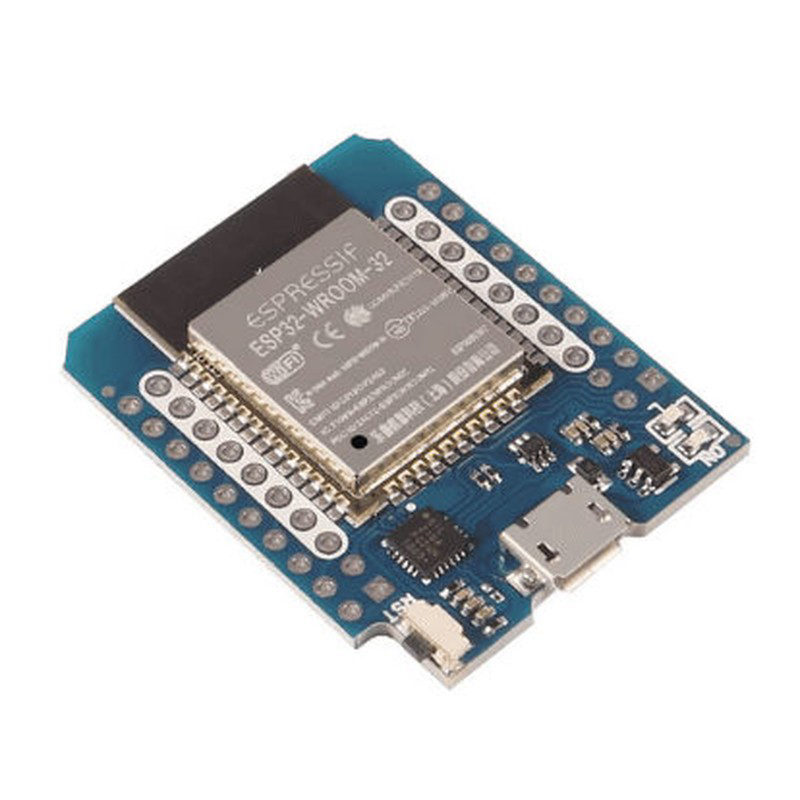 Wemos D1 Mini ESP32The smallest one. Micro USB.
- The board must have an ESP32-WROOM-32 (or -32D) module with the built-in antenna.
- A 5 V USB power supply with at least 1 A – the Bridge stays on all the time.
- 2.4 GHz Wi-Fi.
- An iPhone or iPad with the Home app, and an Apple TV or HomePod as home hub.
- A computer with Chrome or Edge – only to install the firmware.
Setup
Set it up in 5 steps
- Install the firmware. Plug the board into your computer and open the ESP32 Global flasher in Chrome or Edge. Click Connect, then Install.
- Connect it to Wi-Fi. From your phone, join the Wi-Fi network HomeHome.App (password homehome). Pick your 2.4 GHz Wi-Fi, type its password and your email address.
- Create your account. Go to bridge.homehome.app and sign up with the same email address. You can try everything free in demo mode for 24 hours.
- Link eWeLink. Connect your eWeLink account and choose which devices you want in Apple Home.
- Add it to Apple Home. Restart the board, wait 1–2 minutes, then in the Home app tap + and enter 111-88-111.
Activate before the demo ends. Buy Maker Credits and write your Gmail address in the order note (or email info@homehome.app). We add the credits and your devices keep working. You can see your devices at smart.homehome.app.
FAQ
Good to know
Do I pair again when I add a device?
Does the eWeLink app keep working?
What happens after the 24-hour demo?
Where should the Bridge go?
How do I update the Bridge firmware?
Is there help with pictures?
Questions before you buy a board?
Send us a WhatsApp message. Email: info@homehome.app.