Relay & Shutter
Relay & Shutter · ESP8266
Switch lights or move a roller shutter.
A NodeMCU ESP8266 board on a base board, plus a 2- or 4-channel relay module. With HomeHome.App firmware it becomes a smart switch for Apple Home, Google Home and the HomeHome.App web interface.
Try it free first. Relay & Shutter starts in demo mode by itself after setup – usually for 10 to 20 on/off changes, depending on the device. Like it? Then buy Maker Credits.
Two modes
On/off switch
Control lights or sockets with 1, 2 or 4 relays.
Roller shutter
Control one shutter, blind or curtain motor with relays 1 and 2 (up / down).
Maker Credits
How many credits?
One device controls one roller shutter, even with a 4-channel board.
- 1 roller shutter → 1 device with 2 relays
- 2 roller shutters → 2 devices with 2 relays
- 4 lights → 1 device with 4 relays
- 1 roller shutter + 2 lights → 1 device for the shutter + 1 device with 2 relays
| Setting | Credits |
|---|---|
| 1-channel on/off | 1 |
| 2-channel on/off | 2 |
| 4-channel on/off | 4 |
| Roller shutter (2 relays) | 3 |
Hardware
What you need
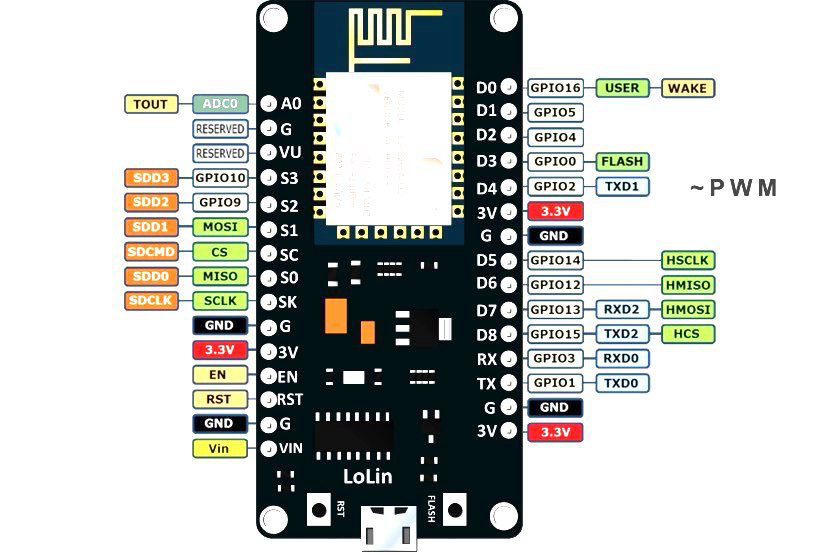 NodeMCU LoLin V3 + base boardThe ESP8266 board and a NodeMCU base board to plug it into.
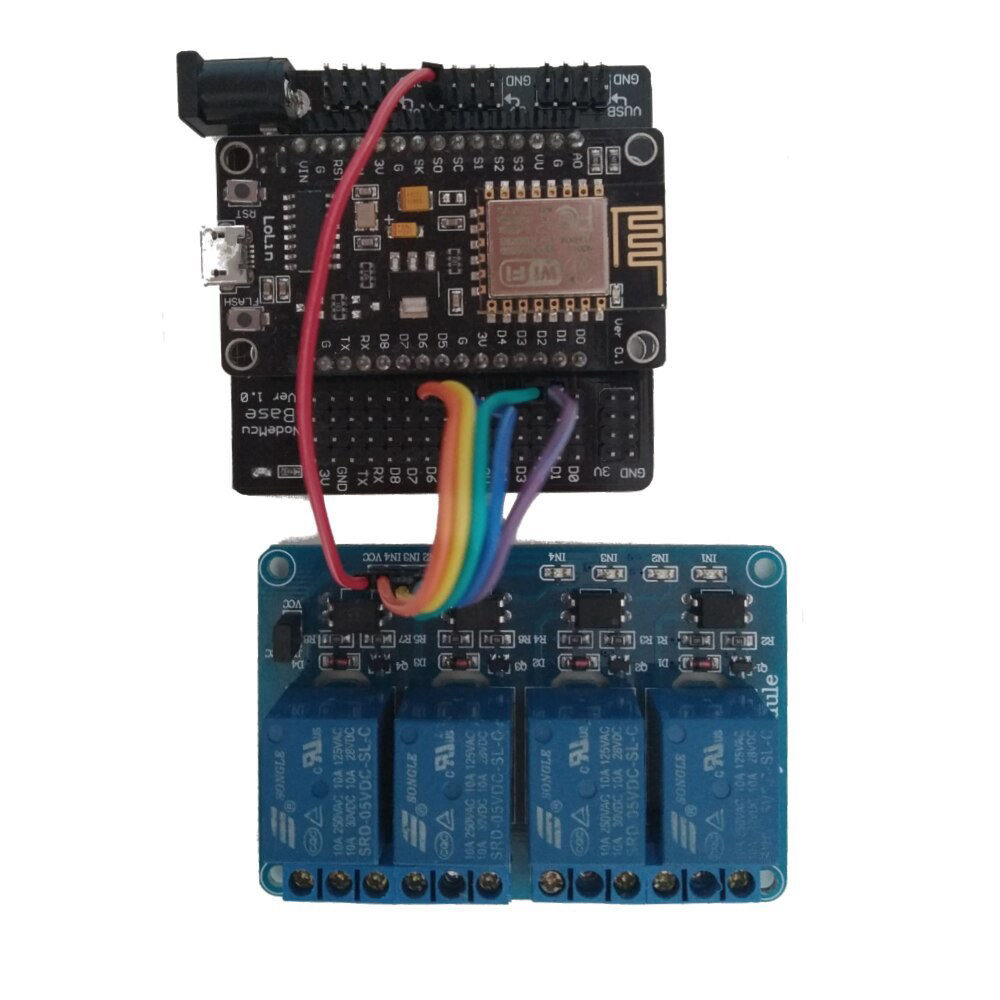 A 2- or 4-channel 5 V relayPlus Dupont cables to connect it to the base board.
- Power: a 5 V micro USB charger, or a 12 V 1 A adapter on the base board's DC jack.
- Optional: your own wall switches or push buttons.
- The relays are dry contacts for up to 250 V AC / 30 V DC.
Safety: mains voltage is dangerous – let an electrician connect the 230 V wires.
Wiring
Which pin goes where?
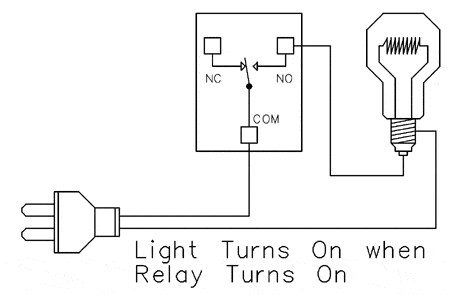
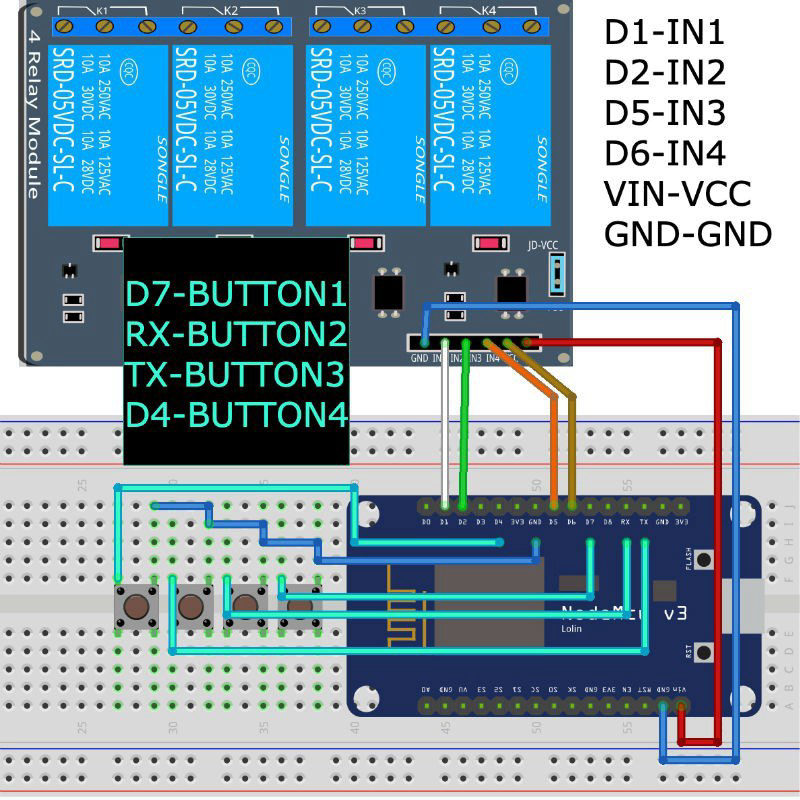
Relay module: VIN → VCC, GND → GND, JD-VCC jumper on. A light goes on the relay's COM and NO terminals, so it turns on when the relay turns on.
| On/off with 4 relays | Pins |
|---|---|
| Relays | D1 → IN1 · D2 → IN2 · D5 → IN3 · D6 → IN4 |
| Buttons | D7 → button 1 · RX → button 2 · TX → button 3 · D4 → button 4 |
| Reset button | D0 |
| LED | D4 – leave it empty if D4 is used for a button |
| Roller shutter or 2 relays | Pins |
|---|---|
| Relays | D1 → IN1 · D2 → IN2 |
| Buttons | D6 → button 1 · D7 → button 2 |
| Reset button | D0 |
| LED | D4 |
Setup
Set it up
- Flash the firmware with Chrome or Edge over USB: ESP8266 flasher.
- Wi-Fi setup. Power the board and join the Wi-Fi network HomeHome-XXXXXX (password homehome) from your phone. The setup page opens by itself – if not, reconnect.
- Choose the device type – Custom On-Off Setting (1, 2 or 4 relays) or Custom Shutter Setting (roller shutter) – and the switch type (momentary or toggle, to match your wall switches). Enter your Gmail address, an optional static IP, and your home Wi-Fi and its password. Save, wait 3 seconds, then unplug and plug in the board.
- Apple Home. Within 90 seconds after the restart, add the accessory in the Home app with the code 111-88-111. Wait one minute after pairing.
- Activate with Maker Credits. Your credits are linked to your Gmail address: write it in the order note or email info@homehome.app.
Free demo: after setup the device runs in demo mode by itself, so you can test it before you buy. The demo usually ends after 10 to 20 on/off changes. When you have bought Maker Credits and we have added them to your Gmail account, restart the device and it keeps working.
Google Home (optional)
In Google Home: + → Set up device → Works with Google → HomeHome, and log in with the same Gmail address.
Web interface (optional)
Sign in at smart.homehome.app with the same Gmail address and activate your device ID under Manage.
Not using Apple Home?
Wait about 3 minutes, open the device page and turn on Skip HomeKit Pair Standby Time in Settings.
Device page
Settings on the device
Type the board's IP address into a browser and log in with your full Gmail address. You find the IP in the Home app (long-press the accessory → settings) or in your router's device list.
- Turn Back – return to the last position after a power cut.
- Auto Turn Off – switch relay 1 off by itself after 1 second to 18 hours.
- Local Mode – keep working without internet (Apple Home and the device page only).
- Rename the device, turn the device page off, and get updates over the air.
Apple Home and the device page work without internet. Google Home and the web interface need internet.
For developers: HTTP commands
Relay 1 off: <device-ip>/1/off?<gmail-name>
All states: <device-ip>/all?<gmail-name> → for example [0,1,2,2] (0 = off, 1 = on, 2 = not used).
Use your Gmail name without "@gmail.com".
Can one board run two shutters?
Is there a longer guide?
Planning lights or shutters? Ask us first.
Send us a WhatsApp message. Email: info@homehome.app.